
HandyPaste — free text snippet manager for Chrome, Edge & Opera
Stop retyping.
Paste what you saved.
HandyPaste is a free Chrome extension that keeps the email addresses, postal addresses, AI prompts, replies and code you type over and over — and puts every one of them a right-click away from every text box in your browser.
HandyPaste is a desktop browser extension — open this page on your computer to install it.
- No account
- No data collection
- Syncs with your Chrome profile
- 4 permissions, nothing more
Snippets for the text you type every day
- Email addresses
- Postal addresses
- AI & ChatGPT prompts
- Canned support replies
- Email signatures
- Crypto wallet addresses
- VAT & tax numbers
- Phone numbers
- JSON & XML payloads
- SQL queries
- URLs & tracking links
- Code review comments
How it works
Three ways to paste saved text in Chrome
Every snippet lands exactly where your caret is — in Gmail, Google Docs, Slack, Jira, ChatGPT, your CRM, or any other editable field.
Right-click any text field
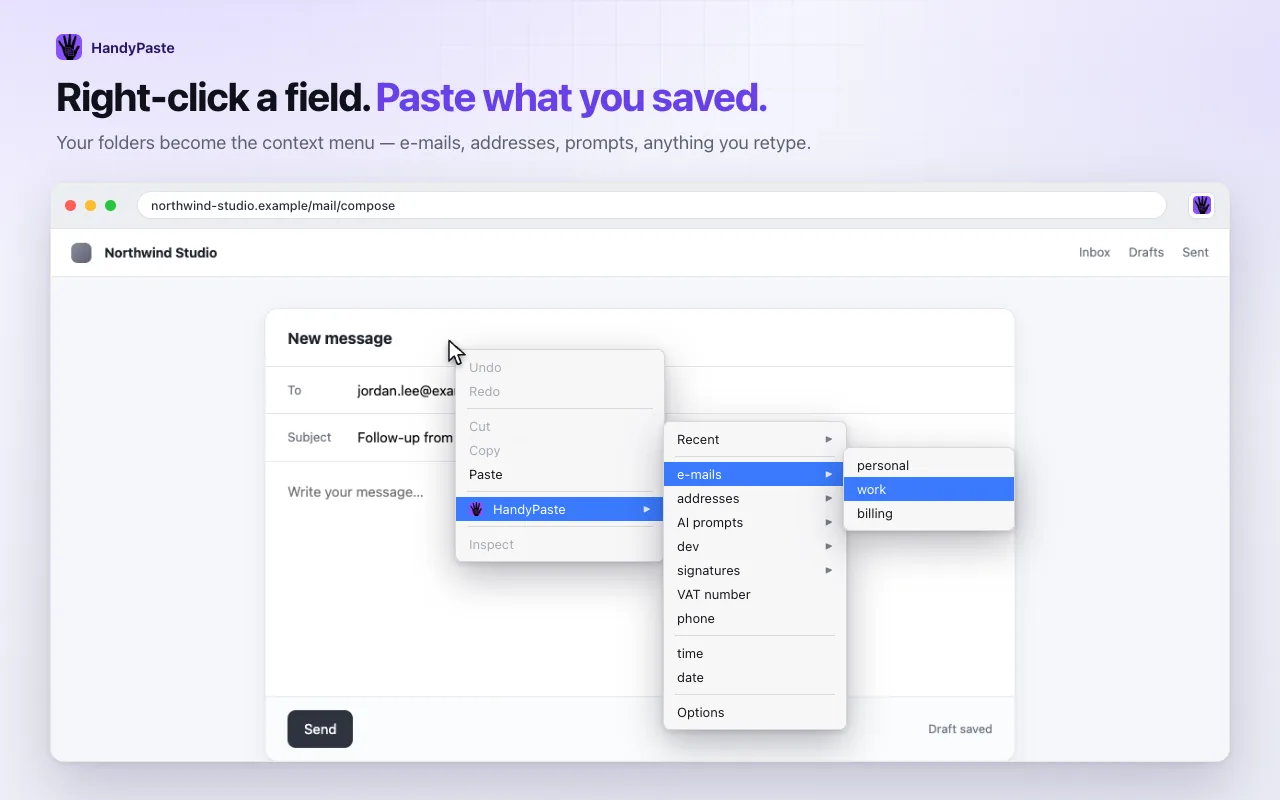
Your folders are the menu. Point at a field, right-click, open HandyPaste and click a snippet — the text goes in at the caret, in the field you were already typing in.
- A Recent submenu keeps the snippets you just used at the top
- Built-in time and date entries for quick timestamps
- Works inside iframes and rich editors, not just plain inputs
Or search from the toolbar
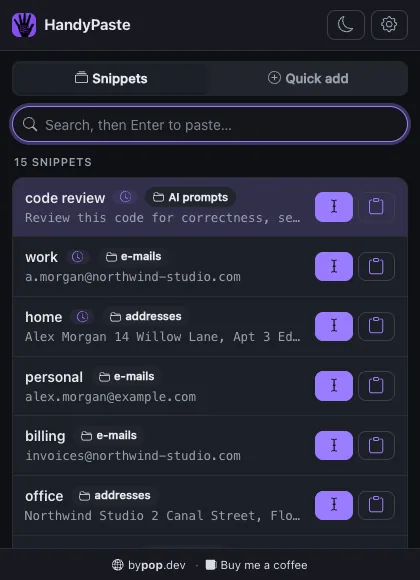
Click the HandyPaste icon (or press Ctrl Shift Y), type two letters and press Enter. The snippet is pasted into the page you came from — or copied to the clipboard, if that's what you want.
- Search box is focused the moment the popup opens
- ↑ ↓ Enter — the mouse is optional
- Quick add saves a new snippet straight into a folder
Never leave the keyboard
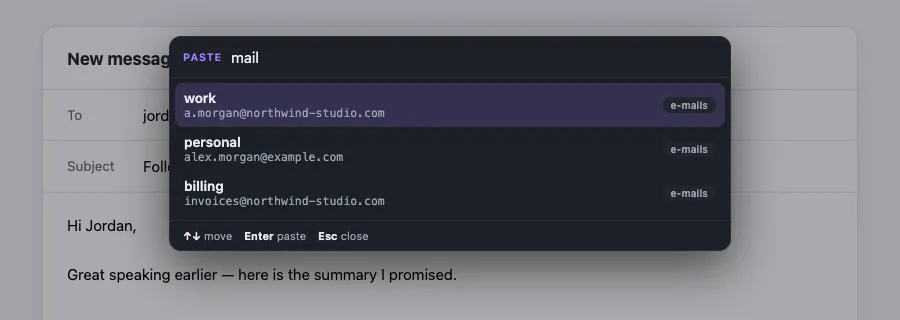
Press Ctrl Shift Space and a picker opens right over the page. Search, arrow keys, Enter — done. Your caret never loses its place.
- Searches snippet names, folders and the text itself
- Follows your light or dark theme
- Press the shortcut again to close it
Smart snippets
Snippet templates that fill themselves in
Drop a placeholder into a snippet and HandyPaste resolves it at the moment you paste. Try it — edit the template below.
{{date}}- Today's date in your locale
{{date:YYYY-MM-DD}}- The date in any format you spell out
{{time}}- The current time,
HH:mm— or{{time:HH:mm:ss}} {{cursor}}- Where your caret is left after pasting
{{input:Label}}- Asks you for a value, then pastes it in
{{anything else}}- Left untouched — Jinja & Handlebars templates are safe
Organise
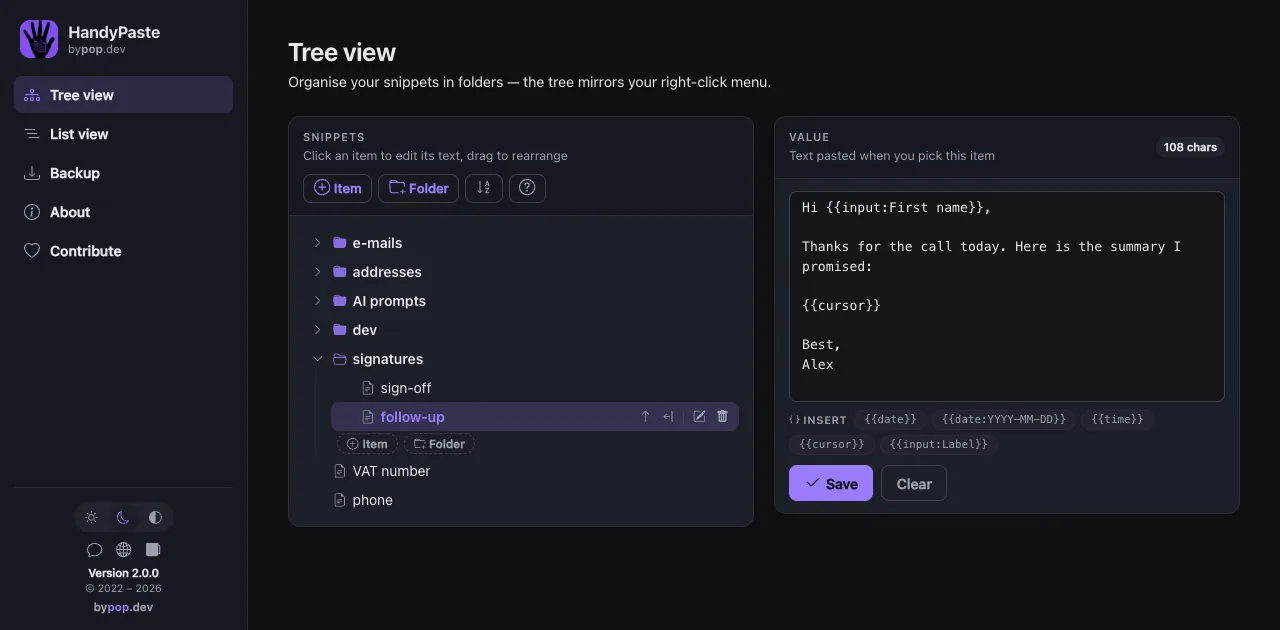
Organise snippets in folders — the tree is your right-click menu
Build a tree of folders as deep as you like on the options page. The tree you build is exactly the menu you get.
-
Drag & drop
Reorder rows or drop a snippet into a folder. Nothing gets lost on the way.
-
Save selection
Select text on any page, right-click, Save selection as snippet, give it a name. Done.
-
Quick add
Save a new snippet from the toolbar popup without leaving the page you're on.
-
Light, dark & system
One setting themes the popup, the options page and the in-page picker.
Private by design
A private snippet manager: your text never leaves your browser
The extension has no server, no account and no analytics — no network code at all — your text lives in Chrome's own sync storage and follows your Chrome profile to your other computers.
storageKeep your snippets and sync them with your profilecontextMenusShow your folders in the right-click menuscriptingInsert the snippet at your caret, on requestactiveTabTouch only the tab you're pasting into, only when you ask
No host permissions, no browsing history, no clipboard reading. Read the privacy policy.
Get started
Install the HandyPaste Chrome extension in under a minute
-
Install
Add HandyPaste from the Chrome Web Store — it installs the same way in Edge, Opera, Brave and Vivaldi.
-
Save your snippets
Open the options page, or select text on any page and choose Save selection as snippet.
-
Paste anywhere
Right-click a field, click the toolbar icon, or press Ctrl Shift Space.
FAQ
HandyPaste FAQ
Is HandyPaste free?
Yes. HandyPaste is completely free, with no account, no subscription and no ads. If it saves you time, you can buy the developer a coffee.
Which browsers does it work in?
Google Chrome and Chromium-based browsers, including Microsoft Edge, Opera, Brave and Vivaldi. All of them install it from the Chrome Web Store.
Do my snippets sync between computers?
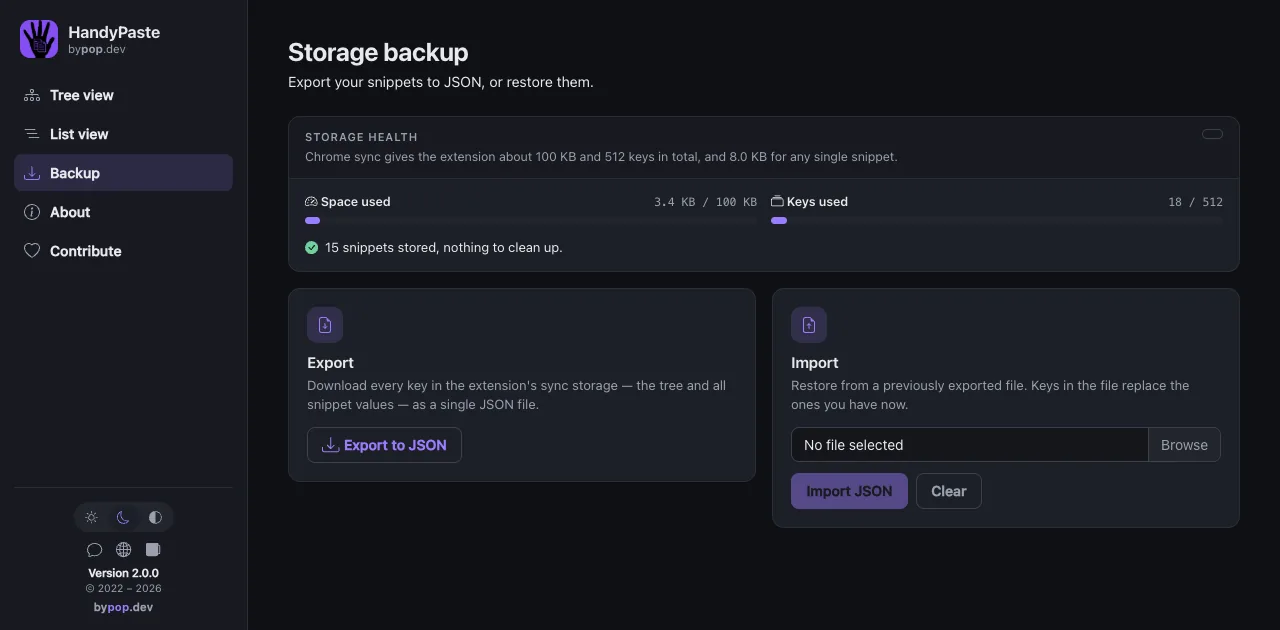
Yes. Snippets are kept in Chrome's sync storage, so they follow your Chrome profile to every computer where you're signed in with sync turned on. You can also export everything to a JSON file and import it anywhere.
Does HandyPaste collect or send my data anywhere?
No. The extension has no server, no analytics and no network code. Your snippets stay in your browser's own storage and only leave it through Chrome's profile sync or a JSON export you make yourself.
Where can I paste snippets?
Into any editable field: inputs, text areas and rich-text editors — Gmail, Outlook on the web, Google Docs, Slack, Notion, Jira, GitHub, ChatGPT, Claude, CRMs and help-desk tools. Browsers don't allow extensions on internal pages such as chrome:// settings or the Web Store itself.
What is the keyboard shortcut?
Ctrl Shift Space opens the in-page picker and Ctrl Shift Y opens the popup (⌘ instead of Ctrl on a Mac). You can change both at chrome://extensions/shortcuts.
Is it a text expander?
Not quite. Text expanders watch everything you type to catch abbreviations, which needs access to every website you visit. HandyPaste only acts when you ask it to — a right-click, a click, or a shortcut — so it needs no access to your pages the rest of the time.
How many snippets can I store?
Chrome's sync storage allows about 100 KB in total and 8 KB per snippet — roughly 500 snippets. HandyPaste shows how much you've used and warns you before a snippet is too large to save.
Can I keep passwords in it?
Please don't. Snippets are stored unencrypted, like bookmarks. Use a dedicated password manager for passwords, recovery phrases and other secrets.
Can I use it to store AI prompts?
Absolutely — it's one of the most popular uses. Keep your best ChatGPT, Claude or Gemini prompts in a folder and paste them into the chat box with a right-click, with {{input:…}} placeholders for the parts that change.

Type it once. Paste it forever.
Free, private, and ready in under a minute.
Add to Chrome — it's free