
HandyPaste vs macOS Text Replacements
Every Mac comes with Text Replacements (System Settings ▸ Keyboard ▸ Text Replacements): type a short abbreviation, and macOS swaps in a phrase. It's free, built in, and syncs to your iPhone. For short, fixed phrases, it's hard to beat.
HandyPaste is for everything longer or smarter than that. You can keep using both.
At a glance
| HandyPaste | Text Replacements | |
|---|---|---|
| Call up text | ⌥⌘V, type a few letters, Return | Type an abbreviation |
| Long, multi-line text | Yes | Single phrases work best |
| Folders, search, favorites | Yes | One flat list |
| Today's date, the clipboard, the cursor | Yes | — |
| Ask for a name or a choice | Yes; choice lists with Pro | — |
| Fill in whole forms | Yes (Pro) | — |
| Works in | Every app where you can paste | Apps that support macOS text replacement |
| Sync | Between Macs, through iCloud | Mac, iPhone and iPad, through iCloud |
| Price | Free; Pro is a one-time purchase | Built in |
Text that changes each time
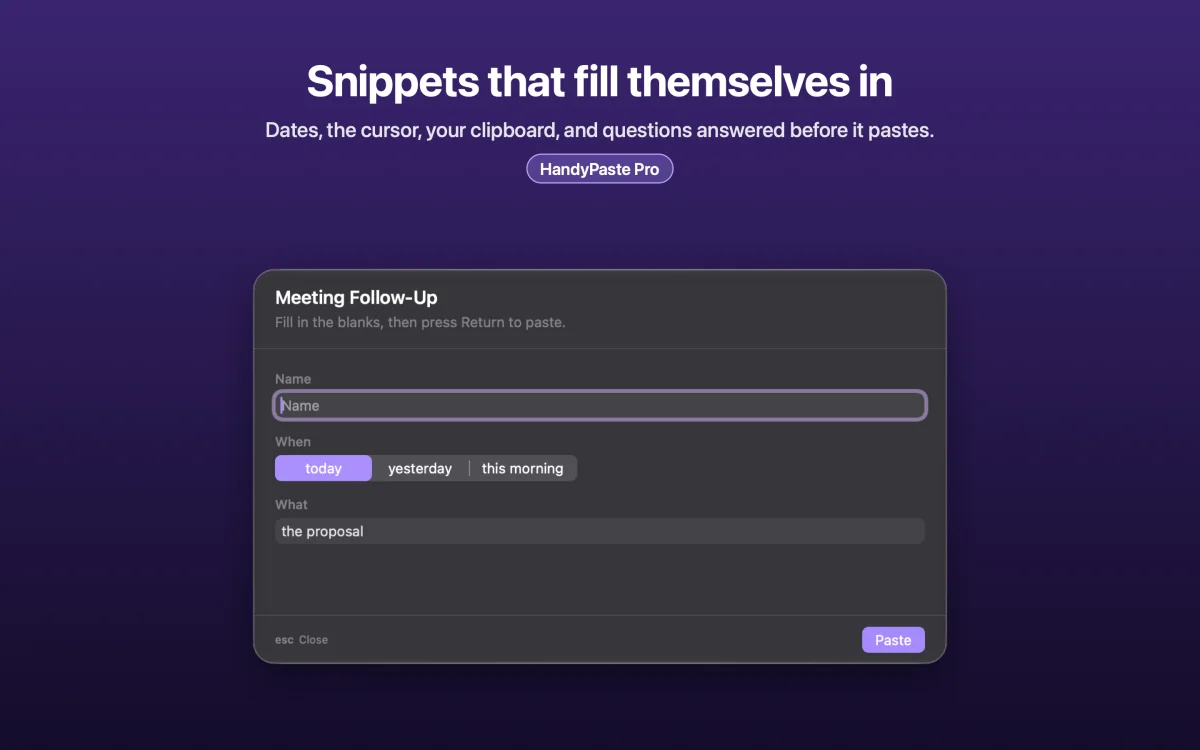
A replacement always pastes the same words. A HandyPaste snippet can fill itself in:
Hi {{input:Name}},

Thanks for your message on {{date:full}}. {{cursor}}

Best regards,
{{var:Name}}
It asks for the name, adds today's date, leaves the cursor where you'll write the rest, and signs with the name saved in your variables (Pro). All placeholders
A library you can find things in
Replacements live in one long list in System Settings. HandyPaste keeps snippets in folders, with keywords and favorites. The picker finds them by title or by any word in the text, and the library's search even understands abbreviations like "hmadr" for Home Address. The library
Every app where you can paste
Text replacement works in apps built on the Mac's own text system. HandyPaste pastes the way you would, with ⌘V, so it works in any app that takes a paste: browsers, Slack, Word, Terminal, help desks and CRMs.
When Text Replacements are enough
- Your snippets are short and never change, like an email address or a fixed phrase.
- You want the same shortcuts on your iPhone.
- You'd rather install nothing.
Many people keep their two-word replacements and move everything longer into HandyPaste.
Get HandyPaste on the Mac App Store, or read Getting started.