
Your text snippets, inside Claude
Your replies, addresses, signatures and prompts live in HandyPaste. With HandyPaste Pro, Claude can use them too. HandyPaste is an MCP server, so Claude Desktop, Claude Code and other apps that support the Model Context Protocol can search your snippets, fill them in and save new ones, right from the chat.
What you can ask
- “Find my shipping delay reply and fill it in for Jordan, order 48213.”
- “What's my office address? Use it in this email.”
- “Save that reply as a snippet in Replies called Refund approved.”
- “Turn this message into a template that asks for the customer's name, and save it.”
- “Which of my snippets mention the refund policy?”
Claude picks the right HandyPaste tool and shows each call in the chat. Most apps ask you before running one.
Snippets that fill themselves in, for Claude too
When Claude gets a snippet, HandyPaste fills it in as if you'd pasted it: today's date, your saved variables and snippets included in it. If the snippet asks a question, like a customer's name, Claude asks you and tries again with your answer.
Hi {{input:Customer name}},

Thanks for your patience. Your order {{input:Order number}} ships on {{date+1d:EEEE}}.

{{snippet:Signature}}
Ask “Fill in my shipping update for Maria, order 1182” and Claude gets the finished text, with tomorrow's weekday and your signature in place. Placeholders
Your Prompts folder, as prompts
Keep the prompts you reuse in a folder named Prompts. Every snippet in it shows up in the AI app's prompt menu as a ready-made message, and its questions become the details the app asks you for. The same prompts still paste into any other app with ⌥⌘V. An AI prompt library on your Mac
You decide what Claude can do
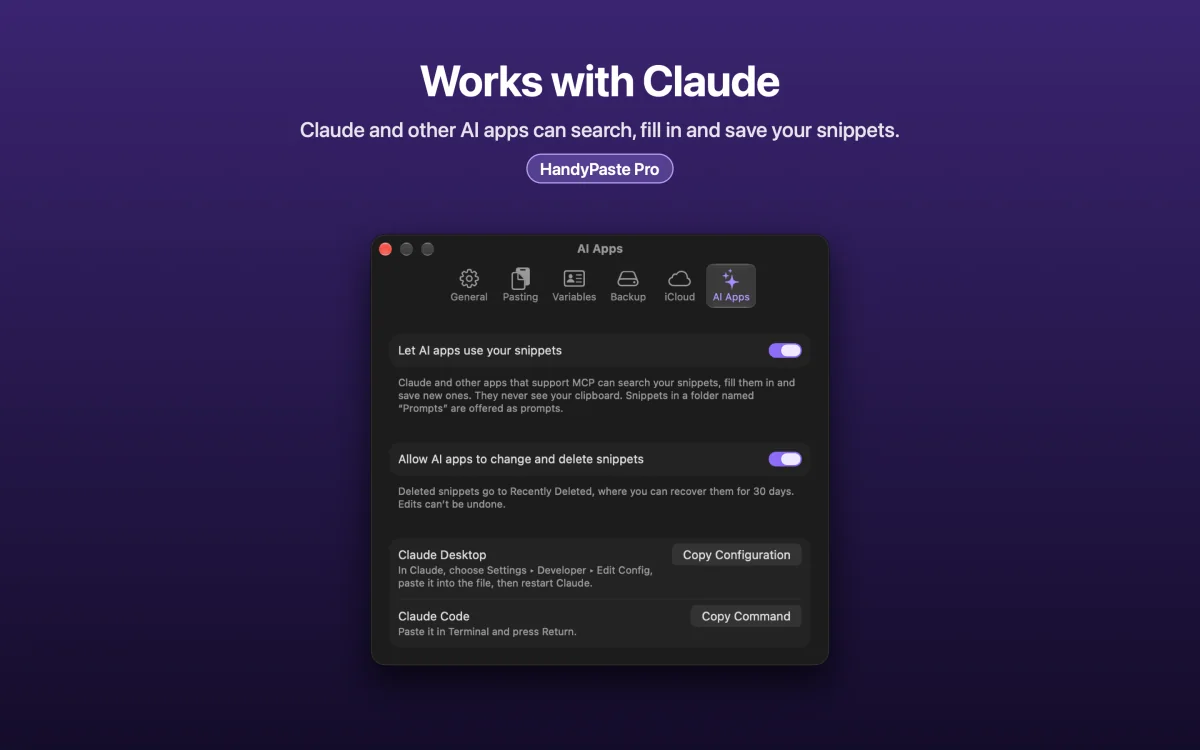
Two switches in Settings ▸ AI Apps, both off until you turn them on:
| Switch | Claude can |
|---|---|
| Let AI apps use your snippets | Search and read snippets, list folders, save new snippets |
| Allow AI apps to change and delete snippets | Also edit snippets, and move them to Recently Deleted |
Claude can never read your clipboard ({{clipboard}} stays empty for AI apps), delete anything for good, delete folders or change your settings. Everything runs through a local connection on your Mac. HandyPaste makes no new network connections for this, though what Claude reads is sent to its AI service, like anything else in your chat. Privacy
Set up in a minute
- In HandyPaste ▸ Settings ▸ AI Apps, turn on Let AI apps use your snippets.
- Click Copy Configuration for Claude Desktop, or Copy Command for Claude Code, and paste it where the tab tells you.
- Ask Claude: “List my HandyPaste folders.”
Any app that can start a local MCP server works the same way. Step-by-step setup and every tool
Not only for Claude
HandyPaste is a text snippet app first: ⌥⌘V pastes any snippet into any Mac app, and ⌥⌘C saves selected text as a new one. The free version covers that for up to 15 snippets you create. Pro, a one-time purchase, adds AI apps, forms, choice lists and variables.